¶ Symptom(s)
Either the printer appears to be offline, or an error occurs while attempting to initiate a print.
¶ Cause(s)
There are multiple potential causes:
- printer-related:
- The printer is not powered on
- The printer is not connected to the network
- The printer doesn't have the correct firmware installed (DF2+ printers)
- network-related:
- The network ports are not open
- The DIS hub is not whitelisted on the network
- The printer is not on the same network as the DIS Hub
- DIS Hub-related:
- The DIS Hub is not powered on
- The DIS Hub is not connected to the internet
- The DIS Hub needs to be restarted
- The DIS Hub is not bound to the printer (DF2+ printers)
¶ Solution(s)
¶ Printer Related Causes
¶ The printer is not powered on
- Plug the printer into a working power outlet.
¶ The printer is not connected to the network
- Make sure you connected one end of the Ethernet cable to the printer and the other end to the live network.
- Alternatively, ensure that the printer is connected to the wifi network. Follow the printer manufacturer's instructions for connecting to a wifi printer.
¶ The Printer has an Incorrect Firmware Version
Raise3D DF2+ printers need a specific firmware version to connect to DIS.
Follow these instructions to check the firmware version of your DF2+ printer. <LINK REQUIRED>

¶ Network Related Causes
¶ The network ports are not open
The DIS Hub requires the following outbound ports to be open:
- Port 53 (DNS - TCP/UDP)
- Port 443 (HTTPS - TCP)
- Port 123 (NTP - UDP)
Ask for confirmation from the local IT team that the ports are open.
¶ The DIS hub is not whitelisted on the network
In some cases, the customer's IT team will not open the ports for the entire network. They will only open the ports up for specific devices. This is called whitelisting.
- To allow the IT team to whitelist the DIS Hubs, communicate the MAC addresses written on the DIS Hubs.
- Mac addresses look like this: XX-XX-XX-XX-XX-XX. Example: D8-3A-DD-97-BD-E2
Alternatively, once you obtain the IP address of the DIS Hub, run the command prompt and type arp - a
- Identify the entry with the IP address of the DIS Hub and note down the value of the Physical Address.

¶ The printer is not on the same network as the DIS Hub
- Obtain the printer IP address according to the manufacturer's user instructions.
- To obtain the IP address of the DIS Hub, follow these instructions.
- Check that the first 3 numbers in the IP address are the same on the printer configuration as they are on the DIS Hub.
- Example: if the DIS Hub returns the IP address 192.168.68.58 make sure the printer has an IP address that starts with 192.168.68. as well.
- If that is not the case, manually assign an IP address on the printer with the same IP structure as the DIS Hub.
- Follow the printer manufacturer's instructions on how to change the IP address of the printer.
- You will need assistance from the customer's IT personnel to obtain the exact network configuration to use.
¶ DIS Hub Related Causes
¶ The DIS Hub is not powered on
- Plug the included power cable into the DIS Hub and then into a standard power outlet.
- Switch the power on using the inline switch on the cable.
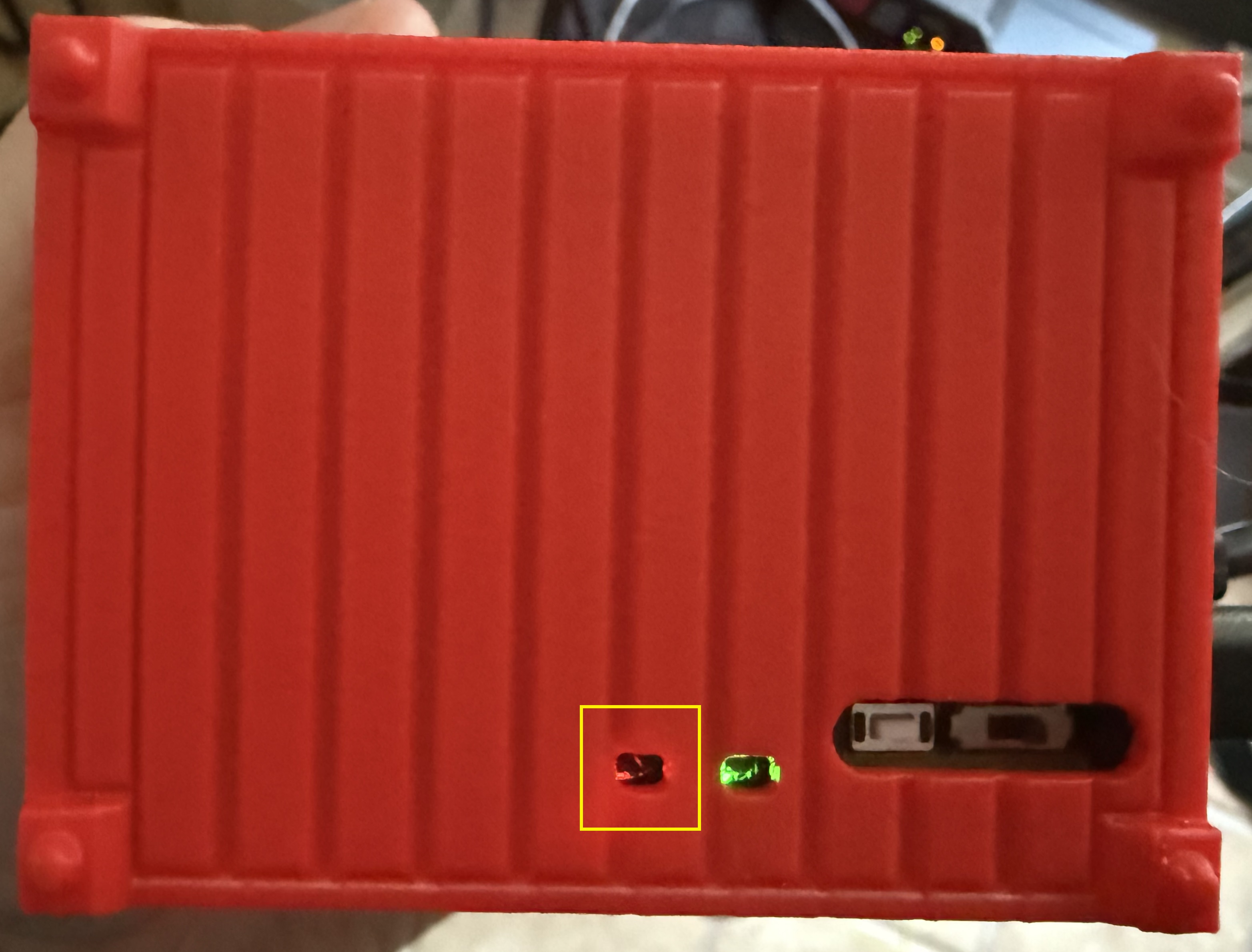
- Confirm LED behavior:
- Solid Red = Device is powered
¶ The DIS Hub is not connected to the internet
- Connect an Ethernet cable to the DIS Hub Ethernet Port and to a network port or switch.
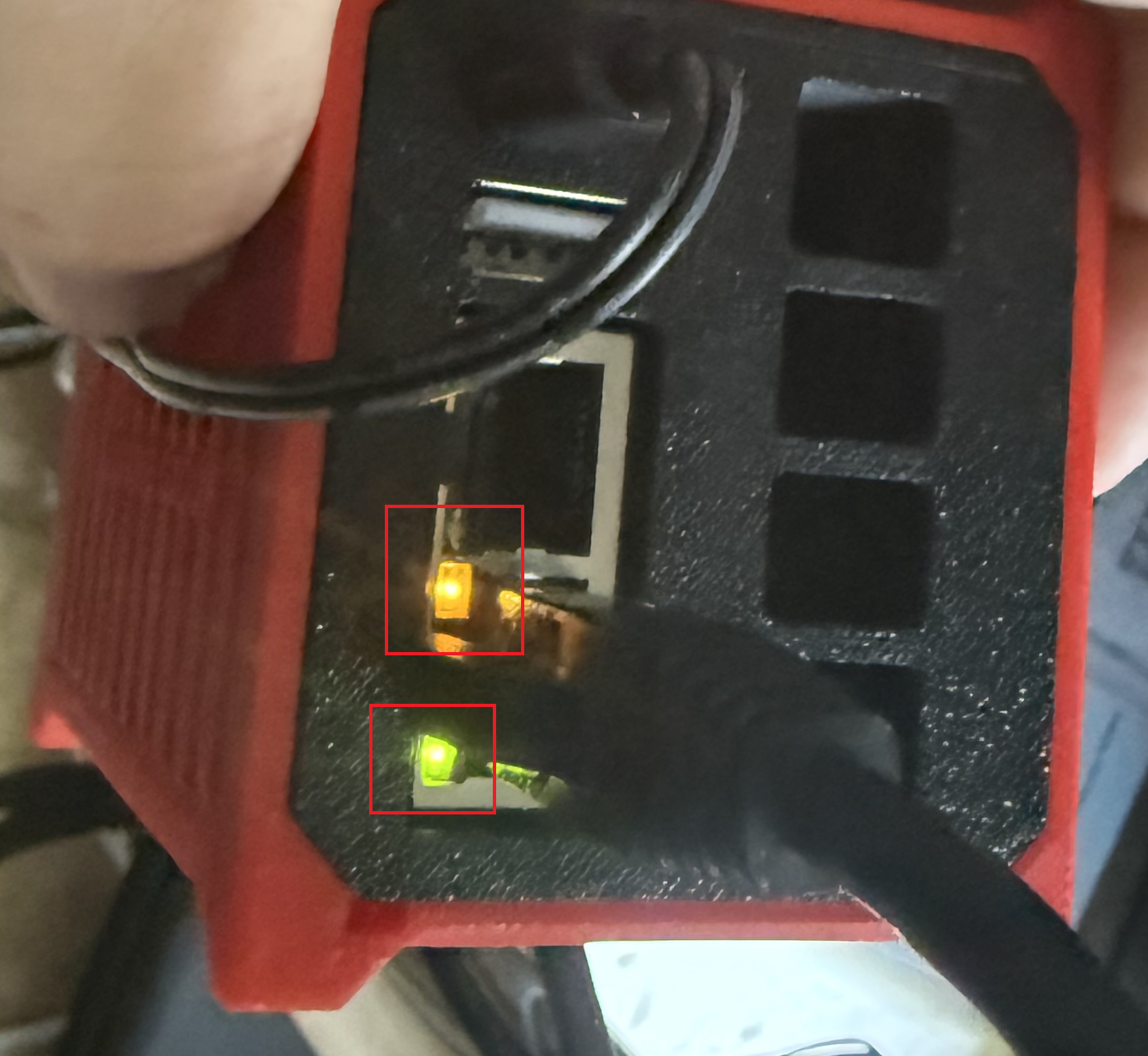
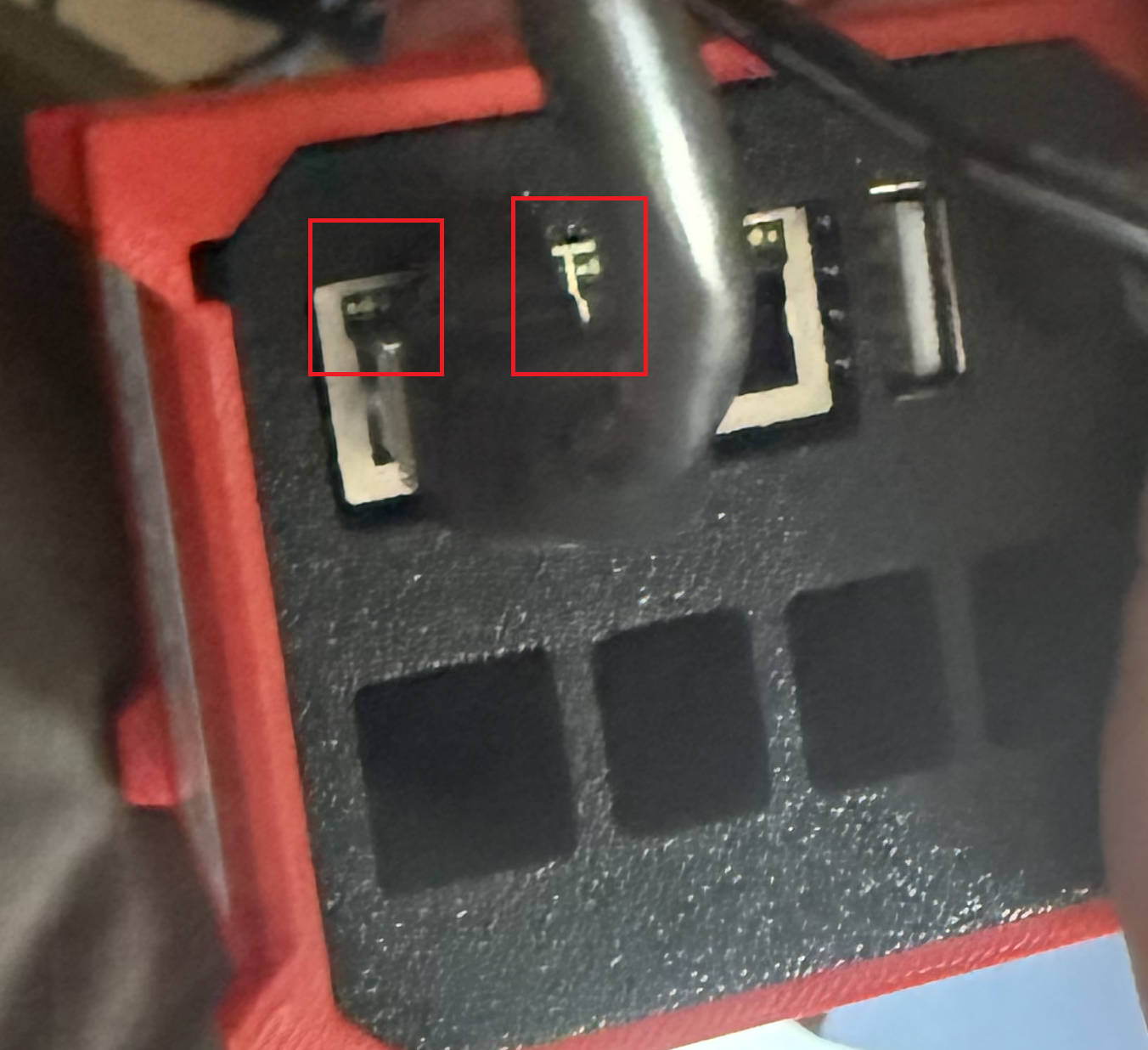
- Confirm LED behavior:
- Flashing Green = Network connection successful
- Solid or Off Green = Network connection issue
- Contact the local IT to identify and fix the problem
¶ The DIS Hub needs to be restarted
- In some cases, you just need to restart the DIS Hub.
- Either unplug the power cable and plug it back in or
- Switch the power OFF using the inline switch on the cable, and then switch the power back ON from that same switch.
¶ The DIS Hub is not bound to the printer
Raise3D DF2+ printers must be bound to the DIS Hub to function properly.
Follow these instructions on <LINK>