¶ Execute a Print License
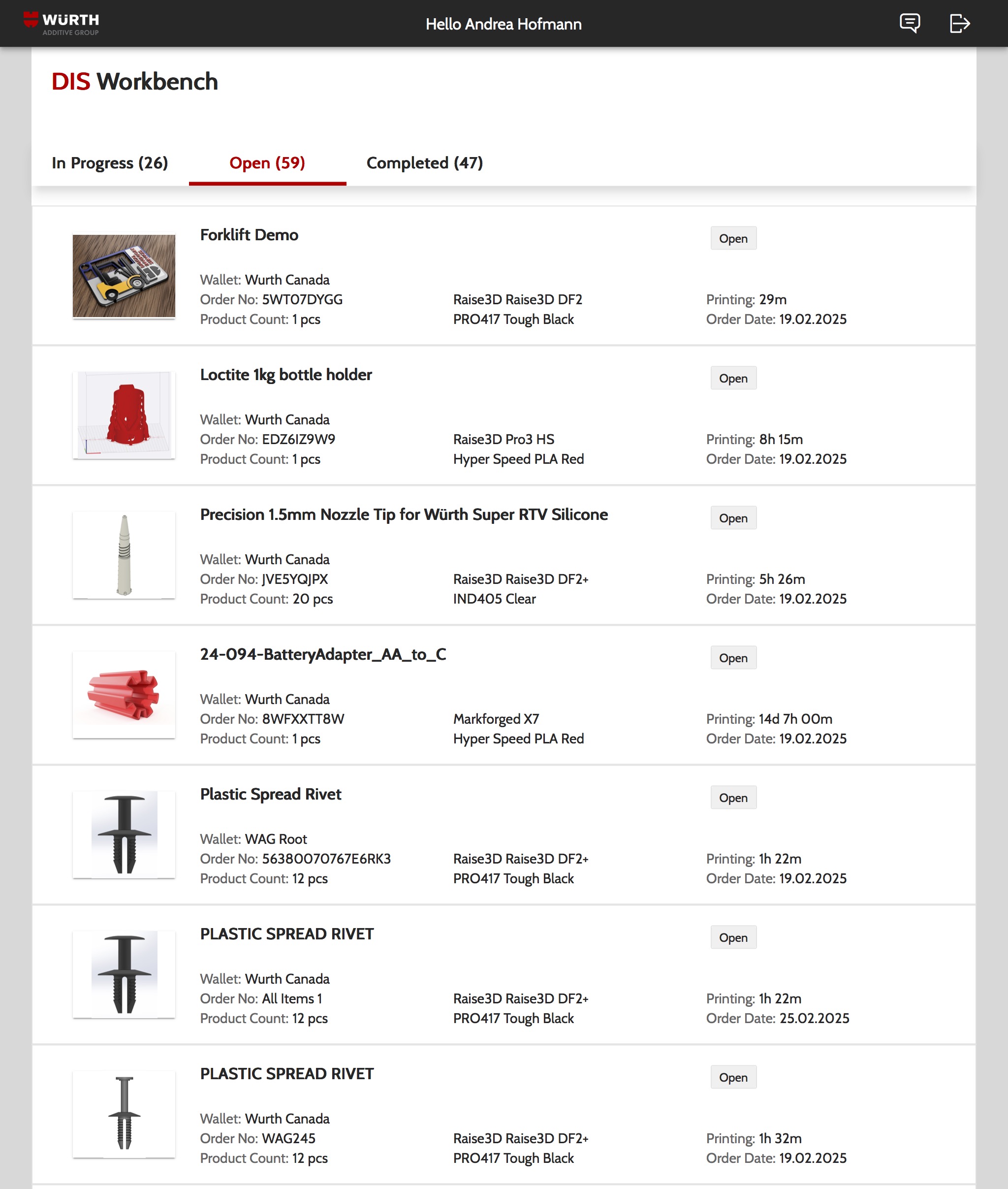
¶ 1.Log In and Access Your DIS Workbench
Log into www.always-in-stock.com
On the Dashboard, you’ll see all licenses
Licenses are grouped by status:
- Open
- In Progress
- Completed (Last 30 Days)
By default, licenses are sorted by Order Date.
¶ 2. Select a License
Select the license you want to process.
On the license detail page, review the Print Job Details and the printers, that matches the Digital Recipe.
Choose a printer that is available.
Click “Reserve and Prepare” to continue.
→ This locks the printer and opens the Preparation page.
¶ 3. Prepare the Printer
Stay Safe: put on all required personal protective equipment (PPE).
Review any safety instructions or warnings.
Follow the preparation instructions provided for the selected printer and material.
Once the printer is ready, click “Print Now” to start the print job.
Note: The print progress may take a few moments to appear. Monitor the printer directly as needed.
¶ 4. Check the Print Result
After printing is Complete, put on your PPE (Personal Protective Equipment)
Inspect the part visually by comparung it with the reference images.
If the result meets the requirements, confirm success in the system.
If not, select “Request Reprint” to start a new job.
¶ 5. Post-Processing
Follow the post-processing steps listed in the license.
Each step may include a 💡 tutorial link with guidance for FFF and DSLA processes
These tutorials cover the process itself, but not specific machine operation. For that, refer to the manufacturer’s manual and safety data sheets (SDS).
Once all steps are completed, confirm the successful completion.
If it fails, you can request a reprint.
¶ 6. Quality Assurance
Proceed to the Quality section.
Perform a visual inspection by checking the provided Reference Images with the printed part along the quality checklist.
Follow the provided instructions and checklists.
Upload or confirm any required documentation.
Once quality checks are complete, confirm and close the print job.
¶ 7. Reprint if necessary
If the part does not meet quality standards at any stage, you can request a reprint.